Best Monitors for Programming and Home Office Work
Compare top monitors for programming and home office work, from sharp QHD and 4K screens to budget and portable picks for any desk.
As an Amazon Associate I earn from qualifying purchases. Affiliate links may earn us a commission at no extra cost to you. Read our disclosure.
Quick Picks
Chosen from published specifications, manufacturer documentation, and owner feedback—not hands-on testing. Amazon links are coming soon.
Dell UltraSharp 27 Monitor - U2724D
A 27-inch QHD IPS Black panel with a 120Hz refresh rate, deep contrast, and a full set of ports that makes it a strong everyday coding and multitasking display.
Dell 24 Plus Adjustable Stand Monitor - S2425HS
An affordable 23.8-inch FHD IPS monitor with a height-adjustable stand and built-in speakers, a sensible budget pick for basic home office and coding tasks.
ASUS ZenScreen MB16ACV Portable USB Monitor
A slim, lightweight 15.6-inch portable monitor that connects over a single USB-C cable, useful for a second screen in small spaces or while traveling with a laptop.
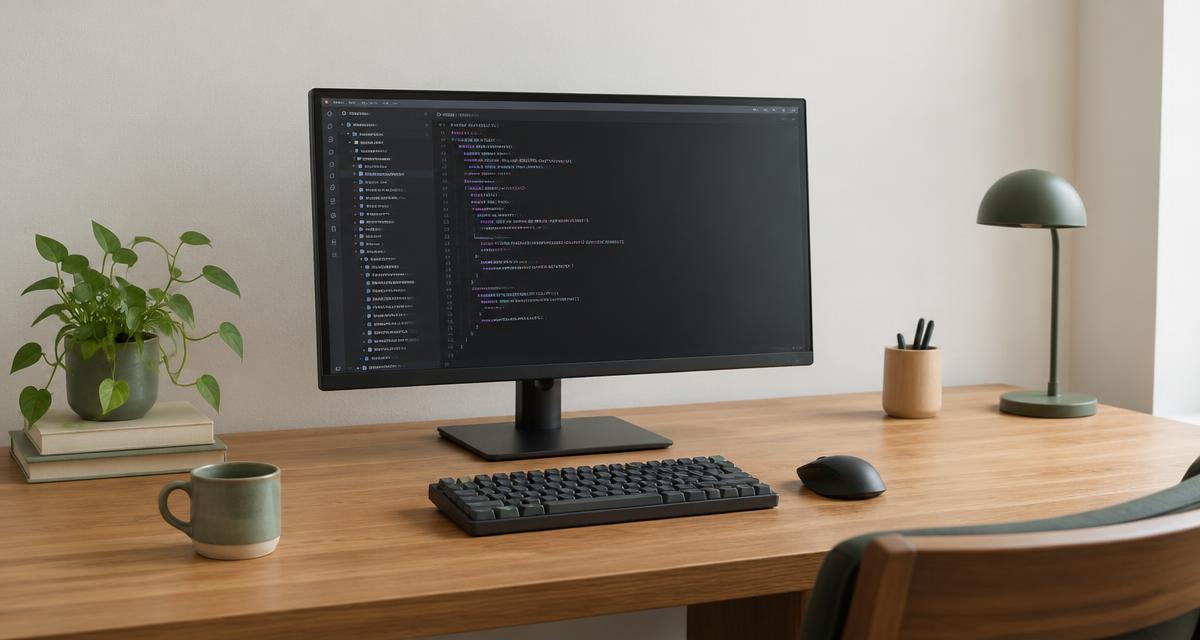
Illustrative image. This guide is research-based buying advice, not a hands-on product review.
Compare the top picks
| Product | Key specs | Pros | Cons | Check availability |
|---|---|---|---|---|
| Dell UltraSharp 27 Monitor - U2724D |
|
|
| |
| LG 27UP850N-W 27-Inch 4K UHD Monitor |
|
|
| |
| ASUS ProArt Display PA278CV |
|
|
| |
| Dell 24 Plus Adjustable Stand Monitor - S2425HS |
|
|
| |
| ASUS ZenScreen MB16ACV Portable USB Monitor |
|
|
|
Best monitors for programming and home office work, reviewed
Dell UltraSharp 27 Monitor - U2724D
A 27-inch QHD IPS Black panel with a 120Hz refresh rate, deep contrast, and a full set of ports that makes it a strong everyday coding and multitasking display.
- 27-inch IPS Black panel, 2560x1440 at up to 120Hz
- 2000:1 typical contrast ratio, 350 cd/m2 brightness
- 100% sRGB, 98% DCI-P3 color coverage
- DisplayPort 1.4, HDMI, USB-C upstream (data only) plus USB-A/USB-C downstream ports
- Height, tilt, swivel, and pivot adjustable stand
- TUV Rheinland 5-star eye comfort certification
Pros
- Sharp text thanks to QHD resolution and IPS Black contrast
- 120Hz refresh feels noticeably smoother for scrolling code and docs
- Full ergonomic stand with pivot to portrait mode
Cons
- USB-C input is data-only, so it will not charge a laptop over that port
- No built-in speakers
LG 27UP850N-W 27-Inch 4K UHD Monitor
A 4K IPS monitor with 90W USB-C power delivery, letting it drive a laptop display and charge it over a single cable, ideal for a clean home office setup.
- 27-inch IPS panel, 3840x2160 (4K UHD) resolution at 60Hz
- VESA DisplayHDR 400 with 95% DCI-P3 color gamut (typical)
- USB-C input with up to 90W power delivery
- 2x HDMI, 1x DisplayPort 1.4, 2x USB-A downstream ports
- Height, tilt, and pivot adjustable stand
- AMD FreeSync support
Pros
- 4K sharpness is excellent for code, spreadsheets, and side-by-side windows
- 90W USB-C power delivery charges most laptops with one cable
- Wide color gamut suits light photo or design work too
Cons
- 60Hz refresh limits use for fast-motion content
- No swivel adjustment on the stand
ASUS ProArt Display PA278CV
A factory-calibrated 27-inch QHD monitor built for color accuracy, with a 75Hz refresh rate and 65W USB-C charging for creative and development work alike.
- 27-inch IPS panel, 2560x1440 (QHD) resolution at up to 75Hz
- 100% sRGB and 100% Rec. 709 color coverage, Delta E < 2 factory calibration
- USB-C with DisplayPort Alt Mode and 65W power delivery
- 2x DisplayPort 1.2 (daisy chain), 1x HDMI 1.4, 4x USB-A hub ports
- Tilt, swivel, pivot, and 150mm height adjustment
- Calman Verified color accuracy
Pros
- Factory calibration makes colors reliable out of the box
- 65W USB-C charging covers most ultrabooks
- Daisy-chain support for multi-monitor DisplayPort setups
Cons
- 75Hz refresh is modest compared to gaming-oriented panels
- 1000:1 contrast ratio is average for the category
Dell 24 Plus Adjustable Stand Monitor - S2425HS
An affordable 23.8-inch FHD IPS monitor with a height-adjustable stand and built-in speakers, a sensible budget pick for basic home office and coding tasks.
- 23.8-inch IPS panel, 1920x1080 (FHD) resolution at up to 100Hz
- 1500:1 typical contrast ratio, 250 cd/m2 brightness
- 99% sRGB color coverage
- 2x HDMI 1.4 ports
- Integrated 2x5W speakers
- Height-adjustable stand with tilt, swivel, and pivot
Pros
- Height-adjustable stand with pivot is rare at this size and tier
- Built-in speakers reduce the need for separate desk speakers
- 100Hz refresh adds smoothness over a typical 60Hz budget panel
Cons
- FHD resolution shows less detail than QHD or 4K options on this list
- No USB-C or USB hub connectivity
ASUS ZenScreen MB16ACV Portable USB Monitor
A slim, lightweight 15.6-inch portable monitor that connects over a single USB-C cable, useful for a second screen in small spaces or while traveling with a laptop.
- 15.6-inch IPS panel, 1920x1080 (FHD) resolution at 60Hz
- Weighs about 0.9 kg (1.98 lbs) at roughly 10.5mm thin
- Single USB-C port handling both video and power (DisplayPort Alt Mode)
- 250 cd/m2 brightness, 800:1 contrast ratio
- Built-in fold-out kickstand with tilt adjustment
- 1/4-inch tripod socket for alternate mounting
Pros
- Extremely portable and light for travel or hot-desking
- Single-cable USB-C setup needs no separate power brick on many laptops
- Built-in kickstand means no extra stand to carry
Cons
- No height adjustment, only tilt
- Lower brightness and contrast than the desktop monitors on this list
- Smaller screen and FHD resolution limit multitasking space
How much screen resolution do you actually need for coding
Resolution matters more for programming than almost any other common office task, because code editors, terminals, and documentation benefit directly from extra horizontal and vertical pixels. A QHD panel at 2560x1440, like the Dell UltraSharp U2724D or ASUS ProArt PA278CV, gives enough room to view two code panes side by side without feeling cramped, while still keeping text large enough to read comfortably at normal desk distances.
Stepping up to 4K, as with the LG 27UP850N, adds even more working space and sharper text rendering, which is useful if you regularly run three or more windows at once, review high-resolution design mockups, or work with dense spreadsheets. The tradeoff is that some applications and older displays scale 4K content inconsistently, so it is worth checking your operating system's scaling behavior before committing to the jump.
A standard FHD monitor such as the Dell S2425HS is still a reasonable choice for lighter workloads, simple web browsing, video calls, or as a secondary screen next to a larger primary display. It will not match the multitasking space of QHD or 4K, but it keeps initial setup simple and avoids any scaling headaches entirely.
Panel type, refresh rate, and why they matter for desk work
Nearly every monitor worth considering for office or development work uses an IPS-type panel, prized for consistent color and wide viewing angles compared to older TN technology. All five monitors in this guide use IPS or IPS Black variants, which means colors stay accurate even when you are not looking at the screen dead-on, a helpful trait if you share a desk or frequently lean back during long sessions.
Refresh rate is a secondary consideration for most office tasks but still affects how smooth scrolling, window dragging, and cursor movement feel. The Dell U2724D's 120Hz panel and the ASUS PA278CV's 75Hz panel both feel noticeably smoother than a standard 60Hz screen when scrolling through long files or moving windows around a crowded desktop, even though neither is marketed as a gaming monitor.
Response time, usually quoted in milliseconds, matters far less for office and coding work than for gaming, since static text and slow-moving content rarely reveal motion blur. Treat refresh rate as a nice-to-have that improves daily comfort rather than a must-have spec when shopping for a monitor meant primarily for writing code, reading documentation, or video calls.
USB-C power delivery and single-cable setups
One of the most useful features for a modern home office monitor is USB-C with power delivery, which lets a single cable carry video, data, and laptop charging power simultaneously. The LG 27UP850N supports up to 90W of power delivery, enough for most 14- and 16-inch laptops, while the ASUS ProArt PA278CV offers 65W, suitable for thinner ultrabooks but potentially not enough for larger gaming or workstation laptops under heavy load.
By contrast, the Dell U2724D includes a USB-C port, but it is data-only and does not deliver charging power, so you would still need a separate charger for your laptop even though the cable count on your desk is reduced. Always check the exact USB-C power delivery wattage against your laptop's charging requirement rather than assuming any USB-C monitor will fully power your machine.
Single-cable setups cut down on desk clutter substantially, since one USB-C cable can replace a separate power adapter, an HDMI or DisplayPort cable, and often a USB hub connection as well. If this convenience matters to you, prioritize the wattage rating over resolution or refresh rate, since insufficient power delivery means your laptop battery may still slowly drain during heavy use even while connected.
Ergonomics, adjustability, and desk space
A height-adjustable stand with tilt, swivel, and pivot options is worth prioritizing for anyone spending full workdays in front of a monitor, since it allows the screen to be positioned at eye level and reduces neck strain over time. Both the Dell U2724D and ASUS PA278CV offer full height, tilt, swivel, and pivot adjustment, while the budget-friendly Dell S2425HS also includes a surprisingly complete set of adjustments for its price point.
The LG 27UP850N includes height, tilt, and pivot but skips swivel, which is a minor limitation unless you frequently need to angle the screen sideways to share your view with someone next to you. Pivoting a monitor into portrait orientation is particularly useful for programmers who want to view long files, logs, or documentation without excessive scrolling.
For anyone working in a small apartment, shared space, or frequently switching locations, the ASUS ZenScreen MB16ACV trades some of these ergonomic refinements for sheer portability, using a simple fold-out kickstand instead of a full stand. It lacks height adjustment, so you may need a laptop stand or stack of books underneath it to get the screen to a comfortable eye level, but its light weight makes it realistic to pack in a bag for travel or client site visits.
Connectivity: ports, hubs, and daisy-chaining
Connectivity needs vary widely depending on your other equipment, so count your cables before shopping. The Dell U2724D and ASUS PA278CV both include a mix of DisplayPort, HDMI, and USB-C along with several USB-A downstream ports, effectively turning the monitor into a small USB hub for a keyboard, mouse, webcam, or external drive.
The ASUS PA278CV also supports DisplayPort daisy-chaining, meaning you can connect a second monitor through the first one using a single video cable back to your computer, which simplifies cabling in dual-monitor setups. The LG 27UP850N offers dual HDMI ports plus a single DisplayPort and USB-C input, a solid mix for switching between a desktop and a laptop.
Budget and portable options tend to trim this connectivity down considerably. The Dell S2425HS offers only two HDMI ports and no USB hub, while the ASUS ZenScreen MB16ACV relies on a single USB-C port for its primary connection, which keeps cabling minimal but means you cannot easily chain more than one device at a time.
Matching a monitor to your specific home office setup
If your home office is a dedicated desk running a desktop PC or docked laptop full time, the Dell UltraSharp U2724D or LG 27UP850N make the most sense, since their larger panels, higher resolutions, and strong port selection suit long, stationary work sessions. Choose the U2724D if faster refresh and a slightly sharper IPS Black panel matter more to you, or the LG if 4K detail and single-cable laptop charging are the priority.
If you occasionally do color-sensitive work such as photo editing, video review, or design alongside programming, the ASUS ProArt PA278CV's factory calibration and Delta E accuracy give it an edge over the other QHD option, even though its refresh rate and contrast are slightly more modest.
For a first monitor on a tight budget, or as a second display next to an existing primary screen, the Dell S2425HS covers the essentials without unnecessary extras. And if you split time between a home desk and travel, or need an easy second screen for a laptop in a small apartment, the ASUS ZenScreen MB16ACV is the most practical choice despite its smaller size and lower specs.
Frequently asked questions
Is QHD or 4K better for programming?
QHD (2560x1440) is a comfortable middle ground that gives extra screen space over FHD without the scaling issues some apps still have at 4K. 4K offers sharper text and more working room, but check that your operating system and applications scale cleanly before switching, especially if you use multiple monitors with different resolutions.
Do I need a monitor with USB-C power delivery?
USB-C power delivery is a convenience feature, not a necessity. It lets one cable handle video, data, and laptop charging, which reduces desk clutter, but any monitor with HDMI or DisplayPort will work fine alongside your laptop's existing charger.
How important is refresh rate for office and coding work?
Refresh rate matters far less for office work than for gaming, but a 75Hz or 120Hz panel does make scrolling and window movement feel smoother than a standard 60Hz screen. It is a nice bonus rather than a critical spec for productivity use.
Can a portable monitor like the ZenScreen MB16ACV be a full-time second display?
It can, especially in small spaces or when you need to move your setup frequently, but its smaller 15.6-inch FHD screen and lack of height adjustment make it less comfortable for all-day use compared to a dedicated 24- or 27-inch desktop monitor.
Should I prioritize color accuracy if I only code and browse?
Not necessarily. Color accuracy features like factory calibration and wide gamut coverage mainly benefit photo, video, or design work. For coding and general office tasks, panel resolution, text sharpness, and ergonomic adjustability typically matter more day to day.
What panel type should I look for?
IPS panels are the standard recommendation for office and programming monitors because they offer consistent colors and wide viewing angles. All of the monitors in this guide use IPS or IPS Black panels for that reason.